Everything around the customer.
Their pain points, their needs, who the stakeholders are and what each of them cares about.
Call notesSalesforceHubSpot
Coadie reads it in, so every document starts from what your team already knows.
Starting with the assistant that sits on every page, grounded in the library your company has already built.
Your decks, files, folders, shared decks, readers and notices — plus whatever’s on your screen right now.
Finds the slide you’re thinking of even when you don’t type its exact words.
Renaming a deck, switching a share link, building a whole deck — it shows you first and only applies once you approve.
Text, shapes, tables, charts, pictures, diagrams, backgrounds — changed instantly, with Undo and a receipt of what it did.
One instruction changes every slide’s background or layout, or adds the same object everywhere at once.
Point it at a brief and it drafts a full deck on a background worker, ready to review when you are.
Drop a spreadsheet on it, ask it to read a customer’s brand colours from their website, or have it explain a slide to you privately while you present.
Not just the deck you have open — it searches everything your team has ever uploaded to find the slide that answers you.
The same documents that keep your content honest also tell you what the customer does with them. On Enterprise, Coadie becomes another tracking point inside your CRM — so you forecast from what customers actually did, not from what the rep remembers.
Everything your team learned about the customer lives in Gong, Salesforce, HubSpot and Teams. Then the proposal goes out, and nobody can see what happens next.
Once a deck or proposal is sent, you can’t tell which pages they reread, which numbers they shared or who else is now reading it.
Today, the data room activity never reaches the opportunity — it sits in another tool, cut off from the CRM record your forecast depends on.
The CRM is meant to be the one source of truth. Their real priorities are scattered across calls, chats and inboxes.
Every open, every revisit, every slide they spent time on — tracked automatically, no data room required.
Logged straight to the Salesforce or HubSpot record your forecast depends on — no manual copy-paste.
The time they spent on each slide sits next to your calls and emails, so the CRM finally becomes the one source of truth it was meant to be.
What you learn about the customer shapes what you show them. What they do with it tells you what to learn next.
Their pain points, their needs, who the stakeholders are and what each of them cares about.
Coadie reads it in, so every document starts from what your team already knows.
The right information, case studies from businesses like theirs and statistics that answer their exact challenge — every time.
Coadie builds it from your approved content, in the customer’s language, and tracks what they engage with.
Every visit is written to the opportunity in Salesforce or HubSpot — who read it, how far they got and how long they stayed on each slide. The CRM finally holds what the customer actually did, not just the stage they’re in.
Who opened what, how long they stayed and what they came back to, logged against the opportunity instead of a separate tool.
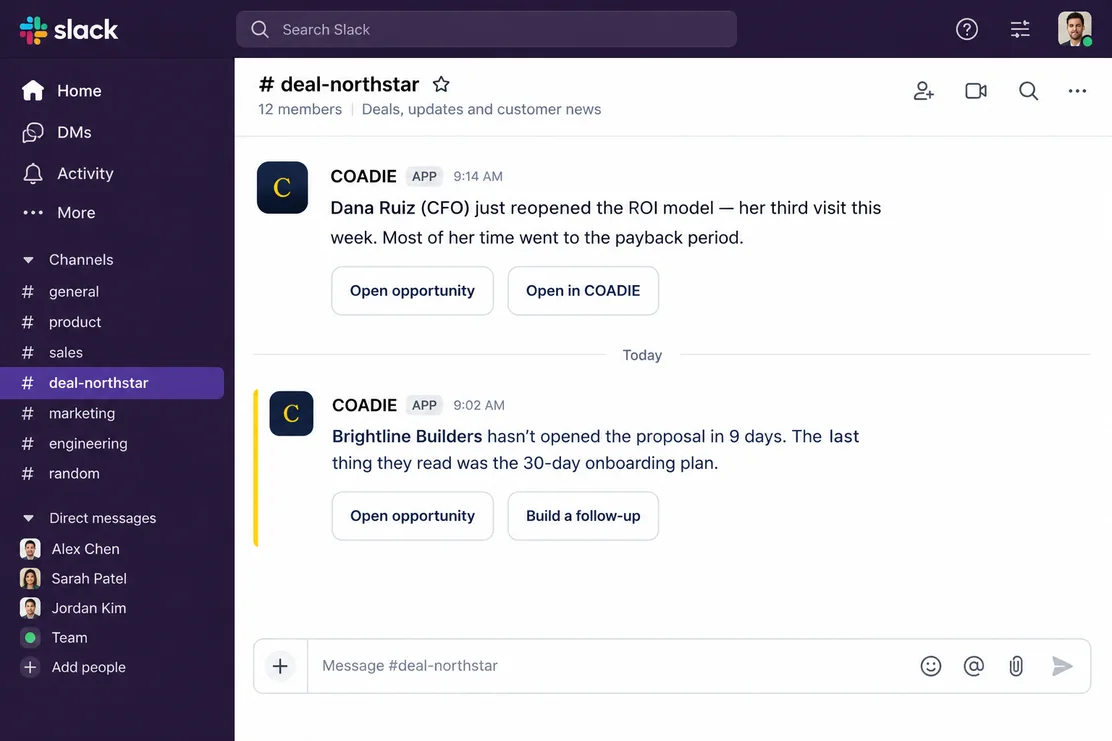
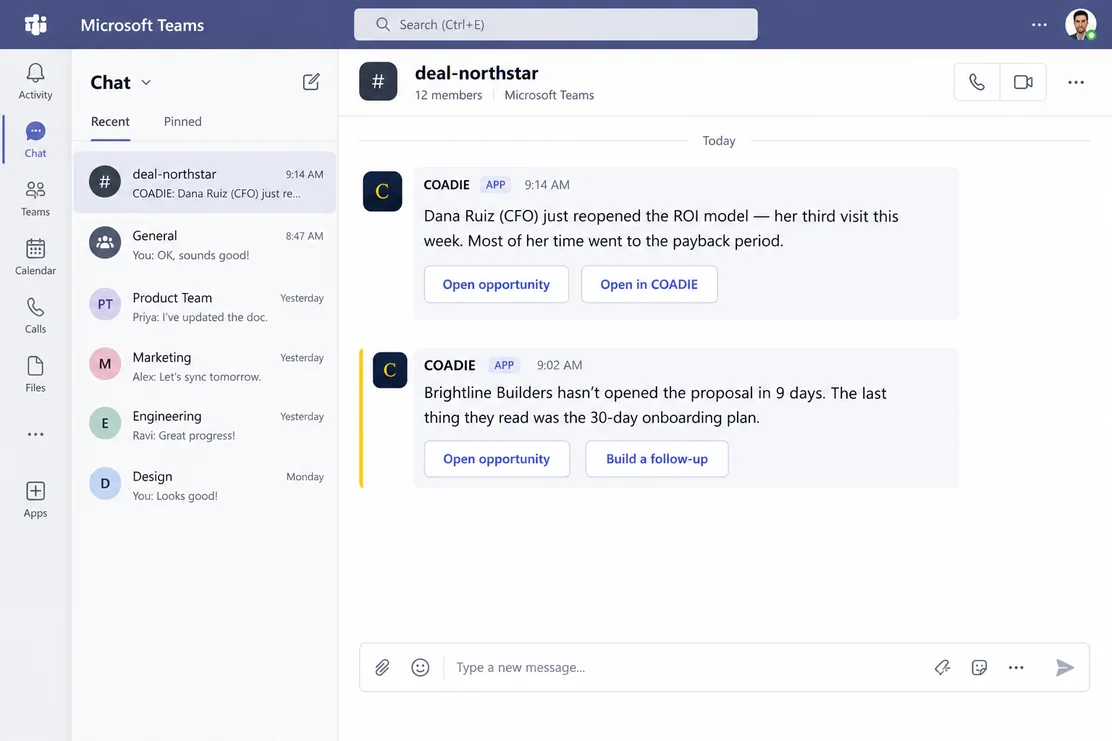
When a proposal gets forwarded, the Slack or Teams alert says so — often the first sign of who really signs.
Each slide they reached, and how long they stayed on it, sits beside the rest of the deal’s history, so the next conversation starts in the right place.
Managers forecast from what customers actually did, not from what the rep remembers.
Coadie posts to the channels your team already works in, with the context to act — not just “someone viewed your document”.
Here’s a sample library of 24 slides from a field-service software company. Pick a sample problem or write your own, and Coadie keeps only the slides that answer it — from content that already exists.
Your library is indexed automatically when you upload it — nobody tags anything. The matching runs on their own words.
Behaves like PowerPoint, not a new tool to learn.
Select anything regardless of what it’s stacked under. Snap guides, right-click, group, duplicate, nudge, undo — the habits you already have carry straight over.
142 picker shapes plus 5,166 icons, lines, tables, and diagrams — Process, Cycle, Hierarchy, Pyramid, Matrix.
48 chart types, video, and PowerPoint’s own catalogue of 116 animation effects — all editable from a side panel.
Per-word size, colour and highlight, WordArt, 121 fonts, gradients, transparency and shadows.
Drag to reorder slides, Ctrl+Z for slide moves, and a History panel that restores earlier versions.
Drop in an Excel or CSV file and the assistant picks it up on its own, suggesting three or four charts built from the file’s real numbers — never invented ones.
Columns, bars, lines, pies, funnels, waterfalls, scatter, treemaps, histograms, radar, gauges, Gantt timelines and more.
Shade the world, a continent, a country or the US states by your numbers. The outlines ship with Coadie, so a map never fails to load in front of a customer.
Type dates the way you normally write them. A Gantt chart draws each task and never guesses at one it can’t read.
Change type, Quick layout, Colours, Styles, Switch rows and columns, Edit numbers — right where PowerPoint puts them.
Clean, Bold, Editorial, Soft, Mono and Highlight. Apply one to a single chart, or the whole deck, in one click.
Drop a spreadsheet on the assistant and it suggests three or four charts, built from the file’s real numbers.
A chart made from a spreadsheet shows exactly which file, sheet and rows its numbers came from.
Every colour set is tested so series stay distinguishable, including for colour-blind viewers.
Charts come alive when you present, or a customer opens your link — bars grow, lines draw, rings fill, key numbers count up. Exports and the editor always show the finished chart, and most chart types download as real, editable PowerPoint charts — Coadie tells you which before you add one.
The diagrams your engineers already drew are the most trusted pictures you own. Coadie reads them properly, finds them when a deck needs them, and puts them on the slide untouched.
Network diagrams, schematics, floor plans: Coadie reads the words on them exactly as printed, and what connects to what. A link it cannot see on the drawing is never added.
Ask for a deck about the gateway and SAP, and the drawing with those labels on it comes up — not a stock photo of someone holding blueprints.
Your drawing goes on the slide as it is, under a title that says the point in one sentence.
Abbreviations the drawing never explains go into the speaker notes for you to explain, and small print gets a warning. Correct any part of the reading; yours is kept.
35+ system themes, and a theme builder for your own — colours, fonts, a master logo, a page picture and 33 layouts.
Restyle a whole deck to a new theme in one press, with a copy kept first. A Design ideas panel offers layout options for the slide you have open, and a contrast check runs everywhere colours are decided.
A hosted link that asks the reader’s name and email — or lets them pick themselves from your list — with an optional passcode. A reader who skips is still measured, without a name.
Per-person figures: visits, slides seen, seconds watched, and whether they read to the end. Reading Now and Follow let you watch a live reader move through the deck.
Reports on which slides are used most, with alerts in the app, by email, and posted to Slack or Teams.
A “Build a deck” button on a Salesforce opportunity starts a brief pre-filled with the customer. See the full CRM story →
Your sellers already live in Slack and their AI assistant. Now their decks do too. Ask Slackbot for a deck, answer a couple of questions, and a finished deck in your company’s look comes back, built only from your approved library. Ask what you have on any topic, or who read last week’s pitch, without leaving the chat. That is headless presentation software: Coadie’s MCP server — the common language AI assistants use to work with other tools — does the work behind the scenes, while your library, your rules and your tracking stay exactly the same.
Ask Slackbot for a deck, or give the brief to any AI assistant that connects to Coadie. Coadie asks the same questions it asks on its own screen, builds the deck from your approved library in the background, and replies with a link to the finished deck — ready to present, share or download.
“What do we have on aerospace?” Coadie answers only from your own approved files and names the file and slide each line came from. If your library does not say it, Coadie tells you so instead of guessing.
Which shared decks were opened, who read them, how far they got, and which slides held attention — answered in the chat you already have open. It can look; it cannot change a deck, a link or a figure.
In Slack, each person links their own Coadie sign-in, and sees exactly what they could see in Coadie — never another company’s material. Building is off until that person turns it on. Every request is logged, never with what was asked or answered.
@Slackbot ask Coadie for a 10-slide renewal pitch for Northwind Air, meeting is next Tuesday
On it. Two quick questions first, so the deck fits the room:
Their head of maintenance and someone from procurement. Procurement will push on price.
Thanks — building it from your approved library now.
Your deck is ready: Northwind Air — renewal pitch, 10 slides from your library.
Hey @Slackbot, ask Coadie to find me information in regards to our capabilities in Aerospace
Here’s what I found in your library:
Yes. Once your company’s Admin connects your Slack workspace (on Enterprise) and you link your Coadie sign-in, ask Slackbot for a deck and give it your brief. Coadie asks a few questions, builds the deck from your approved library, and replies with a link. It is ready to present, share or download.
Yes. Coadie has an MCP server, so Slack, or any AI assistant that can connect to an MCP server, can start a deck, answer Coadie’s questions and collect the finished deck without anyone opening Coadie. The deck is still built only from your approved library: figures come from your brief, your answers and your files, never made up.
Yes. Through it, an AI assistant can build a deck, answer questions from your library with the file and slide each answer came from, and report who opened a shared deck and how far they read. Each connection belongs to one person and sees only what that person can see in Coadie.
Live co-editing in the same box, and comments with tagging. Share that same deck with a customer, and they can comment too — seeing only their own thread, unless you share one.
Added the rollout timeline you asked about — let me know if the phasing works.
This looks right. Can we push phase two to Q1?
Upload directly, drag onto any page, or pick files from where they already live — up to 30 MB a file, continuing in the background with a Stop button per file.
A PowerPoint is rebuilt shape by shape, with its real fonts, sizes and colours. A PDF keeps its words as editable text. Files marked Draft, Confidential or Do not use are kept out of builds automatically, and if you upload a file Coadie already has, it asks first. Drop a spreadsheet and Coadie suggests 3–4 charts from its real numbers — never from the AI.